Link a client
Use an existing Company record and assign a bookkeeper. Keep client work and contact context in the same workspace.
FinanceBin organizes bookkeeping clients, month-end close work, document requests, service pricing, and team capacity beside their LeadBin company records. QuickBooks remains the accounting system.
Bookkeeping firms coordinating client service and deadlines across a team.
WHAT TO EXPECTFinanceBin does not replace QuickBooks, file taxes, reconcile accounts, or verify client revenue. Client portal access and published financials require an explicit staff grant and review.
Work stays connected to the records your team already uses in LeadBin.
Use an existing Company record and assign a bookkeeper. Keep client work and contact context in the same workspace.
Review month-end steps, open document requests, 1099 progress, and team workload with their underlying records.
Set firm-specific rates before using an estimate. Connect a client’s QuickBooks company only when authorized, and inspect the connection status.
This is a real LeadBin app screen with sample workspace data. The view and available actions depend on your workspace and permissions.
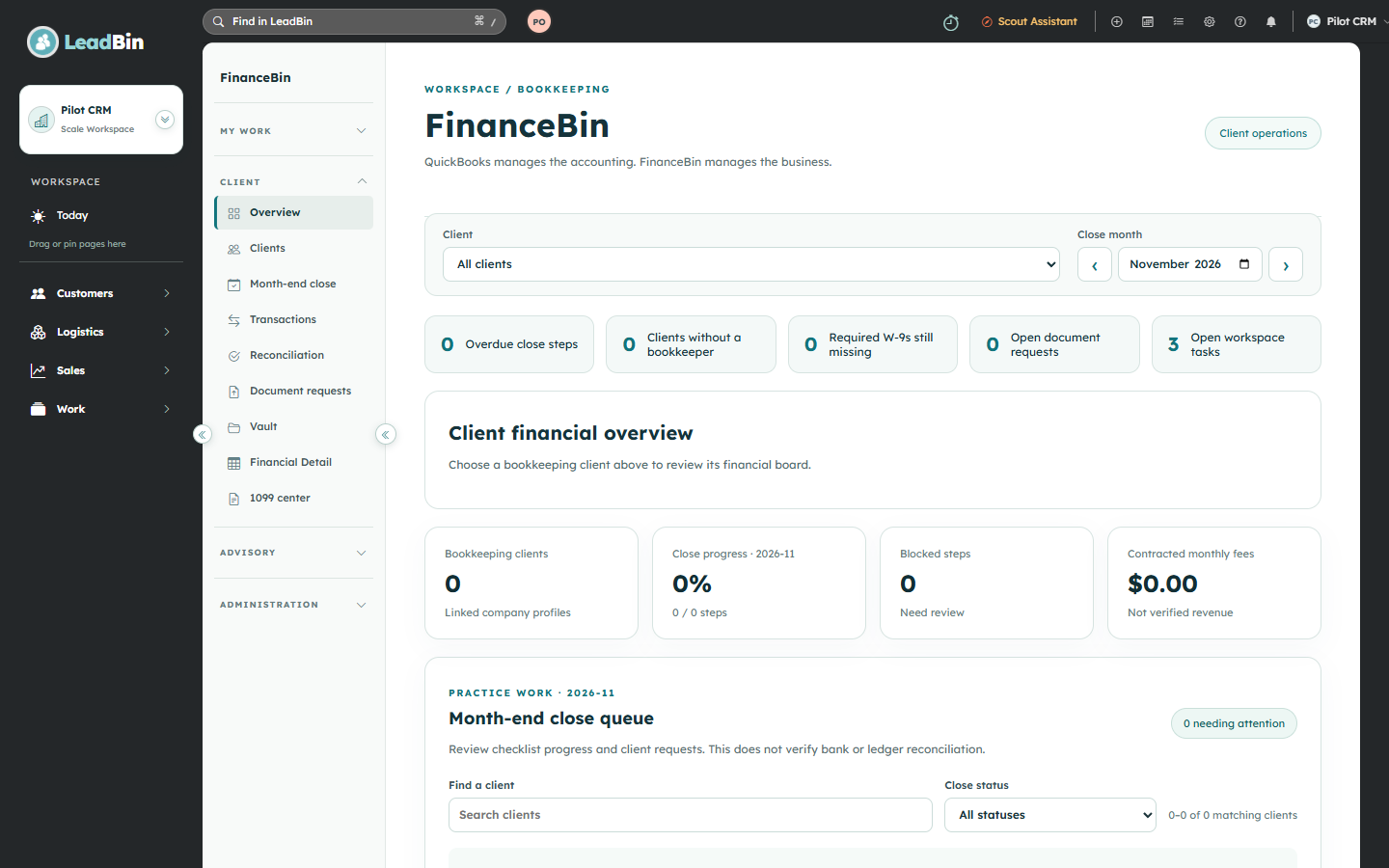
Close progress, open requests, and assigned work are visible without treating a task count as completed accounting.
The pricing worksheet distinguishes saved rates and proposed fees from verified payments.
A client-authorized QuickBooks connection can show saved, read-only reports and source details. Reviews do not post to the accounting ledger.
Each part connects to a specific record or a deliberate team decision.
Choose a Company, reporting period, and assigned work. Review close steps and requests together without marking the accounting books complete.
Inspect saved QuickBooks reports, account detail, and the time of the last successful refresh. Missing or stale source data stays visible.
Use pricing, capacity, forecast, and private AI draft tools with the selected client context. A draft is not published to the client.
Client companies and staff work remain in LeadBin; a QuickBooks company is connected separately with the client’s authorization.
This capability has a pilot gate and is not generally available yet.
Read the FinanceBin guideNo. The connection reads authorized QuickBooks information and saved reports; it does not post transactions or reconcile accounts.
FinanceBin is available in every workspace. A firm owner or admin links clients and controls their access; each QuickBooks connection needs separate authorization.
Start a workspace and enable the extensions available to your team.