Prepare an order or receipt
Enter a direct order or start from an approved QuoteBin contract. Map every physical line to an InventoryBin item.
DeliveryBin connects orders, supplier receipts, partial shipments, and saved shipping documents to the stock held in InventoryBin.
Small operations teams that need deliberate receiving and dispatch with a reliable stock trail.
WHAT TO EXPECTCarrier API booking, shipment tracking feeds, purchase orders, and accounting sync are not part of this release. Customer notifications always require separate review.
Work stays connected to the records your team already uses in LeadBin.
Enter a direct order or start from an approved QuoteBin contract. Map every physical line to an InventoryBin item.
Order confirmation reserves stock. A confirmed dispatch subtracts it; a confirmed supplier receipt adds it.
Preview saved packing documents and tracking information, then separately approve a customer notice.
This is a real LeadBin app screen with sample workspace data. The view and available actions depend on your workspace and permissions.
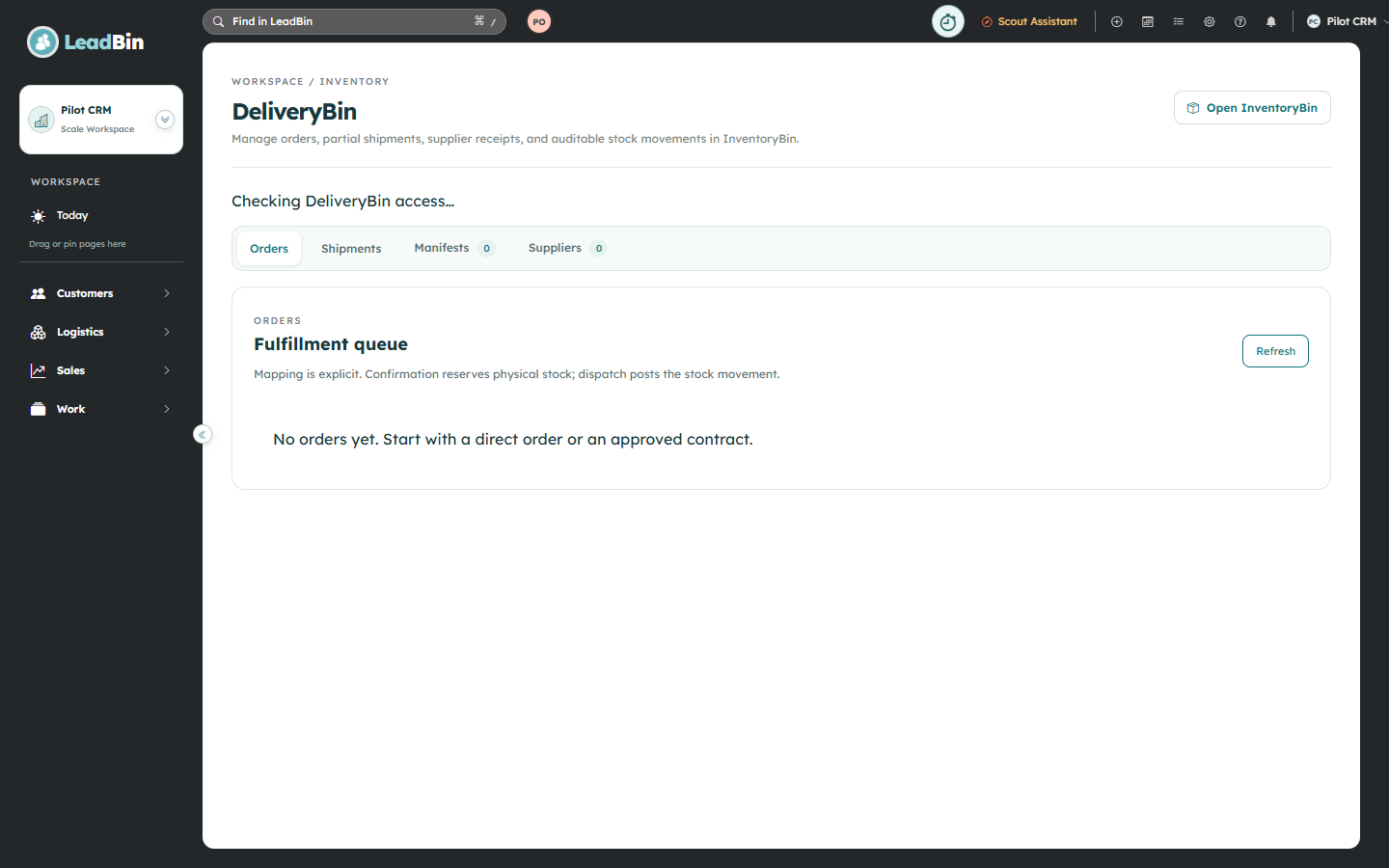
Ship part of an order and keep the remaining quantity visible as a backorder.
Every posted stock change has a source manifest, quantity, actor, and time.
Enter or scan tracking numbers without relying on a carrier account.
Each part connects to a specific record or a deliberate team decision.
An approved contract or direct order can begin fulfillment. Map each physical line to an inventory item before reserving stock.
Dispatch part of an order while the balance remains outstanding. Available stock is checked again at confirmation.
Preview packing and manifest documents from recorded lines and keep their final versions.
Review a tracking notice and recipient separately from the stock movement. Dispatch never sends it automatically.
Owners and admins manage extensions for each workspace.
Explore how-to guidesNo. Stock changes only when an authorized member confirms dispatch. Receipts add stock only on confirmation.
Yes, from an approved contract. A user must still map each physical line to an InventoryBin item; LeadBin does not guess a SKU from quote text.
Start a workspace and enable the extensions available to your team.