Start from the record
Launch a timer from a Person, Company, Opportunity, Task, or Project with the context preselected.
TimeBin keeps a server-backed timer, manual entries, and effort reports close to the CRM records where work begins. Linked paid QuoteBin invoices can add verified revenue context.
Teams that want to understand customer effort and project budgets without guessing at profit.
WHAT TO EXPECTVerified revenue minus tracked labor cost is labor contribution, not net profit. Missing rates, refunds, or payment links remain visible.
Work stays connected to the records your team already uses in LeadBin.
Launch a timer from a Person, Company, Opportunity, Task, or Project with the context preselected.
Pause, resume, stop, or add manual time. Edit and audit history preserve the record of changes.
Open the hours and payment evidence behind customer, opportunity, and project reports.
This is a real LeadBin app screen with sample workspace data. The view and available actions depend on your workspace and permissions.
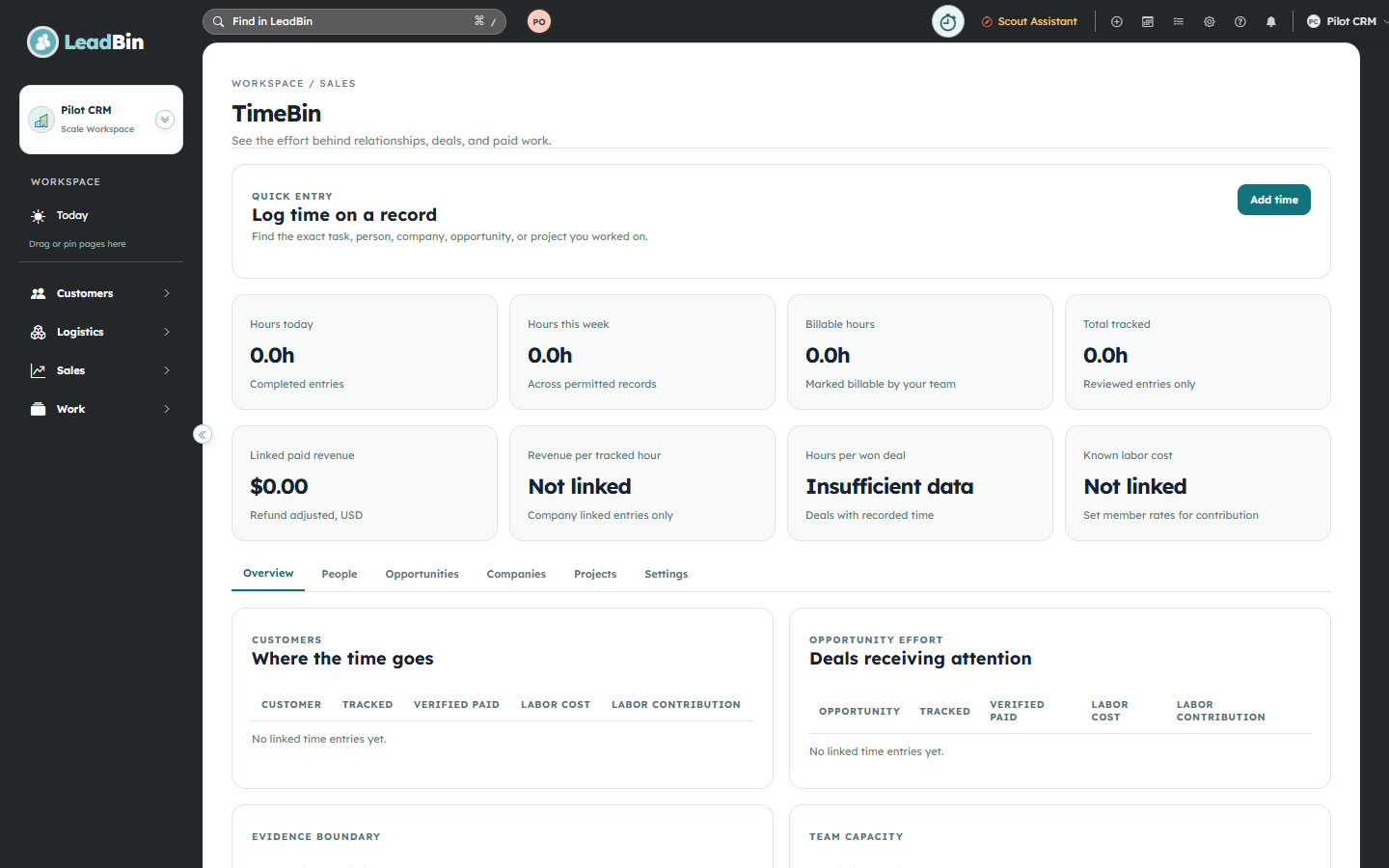
A running timer survives navigation and browser closure.
Paid amounts count as verified only when a QuoteBin payment is linked; unlinked revenue remains explicit.
Compare tracked work with saved hour or money budgets when projects are available.
Each part connects to a specific record or a deliberate team decision.
Start time from the person, company, opportunity, task, or project that the work belongs to.
Review completed entries and manual additions with audit history rather than silently changing past totals.
Compare tracked effort to saved project hour or money budgets when project context exists.
Linked paid QuoteBin amounts can be shown beside labor cost; missing attribution remains explicitly unlinked.
Owners and admins manage extensions for each workspace.
Explore how-to guidesNo. The timer and effort reports work without QuoteBin. Linked paid invoices add verified revenue evidence when available.
No. It labels labor contribution and shows when external costs or revenue links are missing.
Start a workspace and enable the extensions available to your team.